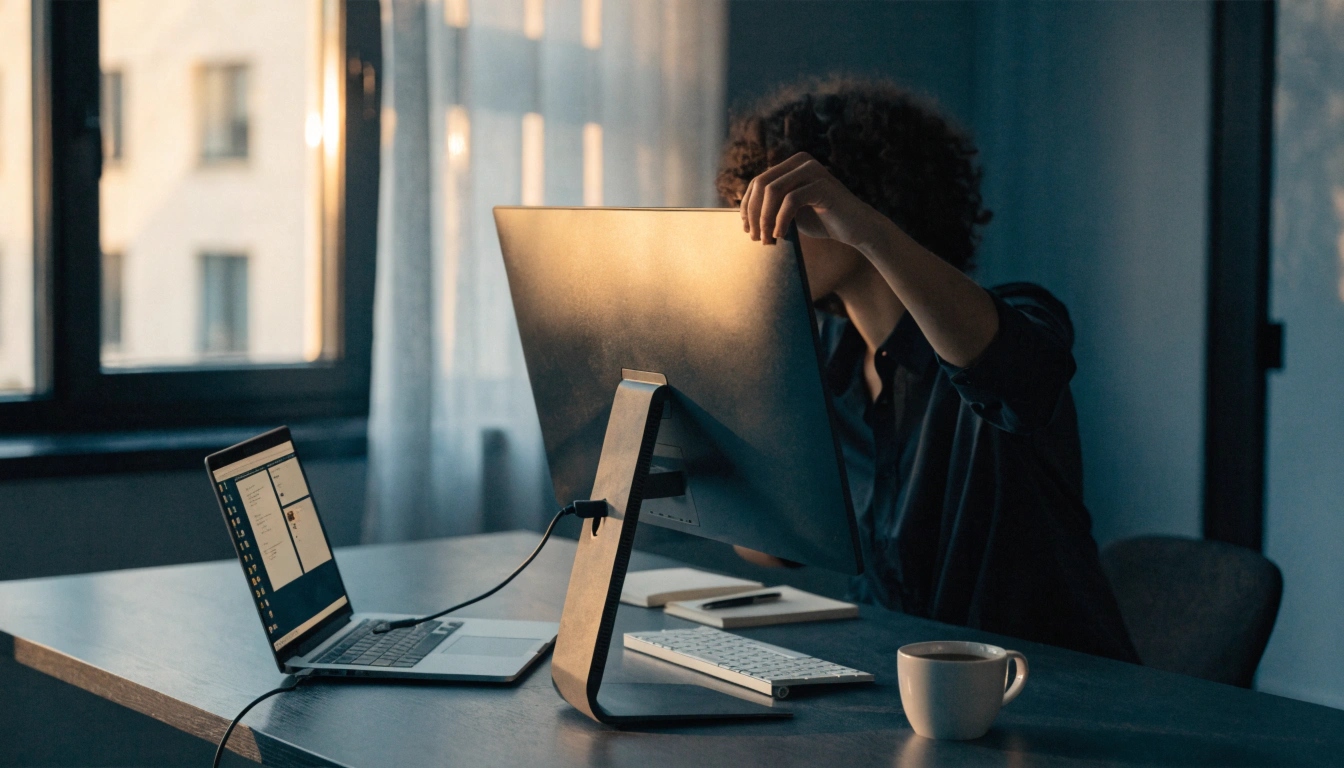
Do you want a bigger screen for work, movies, or games? Connecting your laptop to a monitor is easy. You don’t need to be a tech expert. Most people can do it in under five minutes.
Quick Answer
Grab a cable — HDMI, DisplayPort, USB-C, or VGA. Plug one end into your laptop and the other end into your monitor. Turn on the monitor. Then press Windows + P (on Windows) or go to System Settings → Displays (on Mac). Pick how you want to use the screen. That’s it! Your laptop screen will now show up on your monitor too.
What You Need Before You Start
First, look at the ports on your laptop and your monitor. A port is just the little slot where a cable plugs in.
Check your laptop’s port. Most laptops have one of these:
- HDMI port — A wide, flat shape. Common on Windows laptops.
- USB-C or Thunderbolt — A small, oval shape. Found on newer laptops and all MacBooks.
- DisplayPort — A rectangle with one corner cut off. Common on gaming and business laptops.
- VGA port — A big blue port with tiny pins inside. Only found on older laptops.
Check your monitor’s port. Most monitors use HDMI, DisplayPort, or VGA. Some newer ones also use USB-C.
Once you know both ports, pick a cable that matches. If the ports are different, you’ll need an adapter instead.
Choosing the Right Cable or Adapter
You don’t need to spend a lot of money. A basic cable from any store works fine.
| Laptop Port | Monitor Port | What You Need |
| HDMI | HDMI | HDMI cable |
| USB-C | HDMI | USB-C to HDMI adapter or cable |
| USB-C | DisplayPort | USB-C to DisplayPort cable |
| DisplayPort | HDMI | DisplayPort to HDMI cable |
| VGA | VGA | VGA cable |
Good to know: VGA cables carry video only — no sound. If you want audio through your monitor speakers, use HDMI or DisplayPort. Both send video and sound at the same time.
Step-by-Step: How to Connect Your Laptop to a Monitor
Step 1 — You Don’t Need to Turn Anything Off
You can plug in the cable while your laptop and monitor are both on. This is called “hot-plugging,” and it’s totally safe.
Step 2 — Plug In the Cable
Push one end of the cable into your laptop’s port. Push the other end into your monitor’s port. Make sure it’s snug and all the way in.
Step 3 — Turn On the Monitor
If your monitor isn’t on yet, turn it on. Then press the Input or Source button on the monitor. Choose the input that matches your cable, like “HDMI 1.”
Step 4 — Wait a Few Seconds
Your laptop should find the monitor on its own. The screen might flicker for a second — that’s normal. If nothing shows up, go to Step 5.
Step 5 — Choose How Your Screens Work (Windows)
Press Windows + P. A menu pops up with four choices:
- PC screen only — Just your laptop screen turns on.
- Duplicate — Both screens show the exact same thing.
- Extend — Your desktop spreads across both screens. Best for getting work done.
- Second screen only — Only the monitor turns on.
Most people like Extend best.
Step 5 — Choose How Your Screens Work (Mac)
Go to Apple Menu → System Settings → Displays. Your Mac will show both screens. You can drag them to match your desk setup, pick one as the main screen, or turn on Mirror Displays to show the same thing on both.
Step 6 — Fix a Blurry Screen (If Needed)
If the picture looks blurry or stretched, right-click your desktop (Windows), choose Display Settings, then find Display Resolution. Pick the setting your monitor recommends. On a Mac, go to System Settings → Displays and pick the best resolution there.
Common Problems and Easy Fixes
“No Signal” on the monitor Your monitor is probably set to the wrong input. Press the Input or Source button and pick the right one, like HDMI 1.
Screen looks blurry or stretched Your resolution is set wrong. Open Display Settings and choose your monitor’s native resolution. You can usually find this number in the monitor’s manual or on the box it came in.
Laptop sees the monitor, but the screen stays black Try pressing Windows + Ctrl + Shift + B. This restarts your graphics driver. On a Mac, just unplug the cable and plug it back in.
No sound coming from the monitor HDMI and DisplayPort both carry sound, but you may need to switch your audio output. On Windows, right-click the speaker icon in your taskbar, choose Sound Settings, and pick your monitor from the list.
The adapter isn’t working Not every USB-C port supports video. Check your laptop’s specs to see if your port supports “DisplayPort Alt Mode” or “Thunderbolt.” If it doesn’t, the adapter won’t work no matter what.
Tips for a Better Two-Screen Setup
- Match your screen layout to your desk. In Display Settings (Windows) or Displays (Mac), drag the screen icons to match where your monitor really sits. This makes moving your mouse feel natural.
- Make the bigger screen your main one. If your monitor is larger or sharper than your laptop, set it as your main display.
- Keep your laptop running with the lid closed. On Windows, go to Control Panel → Power Options → Choose what closing the lid does, then set it to “Do nothing.” On a Mac, plug in your laptop and connect a mouse or keyboard, and it will work with the lid closed.
- Watch your cable length. HDMI and DisplayPort cables work well up to about 3–5 meters (10–15 feet). For longer runs, use an active cable or signal booster.
- Update your drivers. Old graphics drivers can cause flickering or black screens. On Windows, check Device Manager → Display Adapters. On a Mac, just keep macOS updated.
Frequently Asked Questions
1. Can I connect my laptop to a monitor without HDMI?
Yes! You can use DisplayPort, USB-C, Thunderbolt, or VGA instead. Adapters can also connect two different port types.
2. Do I need to install software for a second monitor?
No. Windows and macOS find external monitors on their own. No extra software needed.
3. Can I use an old desktop monitor with my laptop?
Yes, as long as the ports match. Many older monitors use VGA or DVI. You can connect with a VGA cable or a VGA-to-DVI adapter.
4. Why does my monitor look blurry after I connect it?
Your resolution probably isn’t set to your monitor’s native resolution. Fix this in Display Settings.
5. Can I connect two external monitors to my laptop?
Many laptops can support two monitors, but it depends on your laptop’s graphics card and ports. Some laptops need a docking station or USB display adapter to run more than one monitor.
6. Does using an external monitor drain my laptop’s battery faster?
Yes, a little. Running a second screen uses more power. If you’re working for a long time, keep your laptop plugged in.
7. Is a USB-C to HDMI cable the same as a USB-C to HDMI adapter?
They do the same job, just in a different shape. A cable is one cord with both ends built in. An adapter is a small piece you plug a separate HDMI cable into. Both work the same way, as long as your USB-C port supports video.
Conclusion
Connecting your laptop to a monitor only takes a few minutes. First, find the right ports on both devices. Then use the correct cable or adapter. Finally, pick your display mode in your system settings. Most problems, like “No Signal” or a blurry screen, take less than a minute to fix.
Whether you want a two-screen workspace, a bigger screen for a presentation, or just a break from a small laptop screen, this simple skill can make your day easier.
Want more easy tech guides like this one? Visit TechXora.org.
Author: Muhammad Ahmad
M. Ahmad is an SEO and GEO Specialist and the Founder of TechXora.org. With over 3 years of experience in digital marketing, he helps websites grow through SEO, GEO, content creation, and online marketing. He writes about technology, AI tools, WordPress, web hosting, cybersecurity, and SEO. Through TechXora.org, he shares easy-to-follow guides, useful tips, and the latest tech updates to help readers learn and grow online.
Also Read: