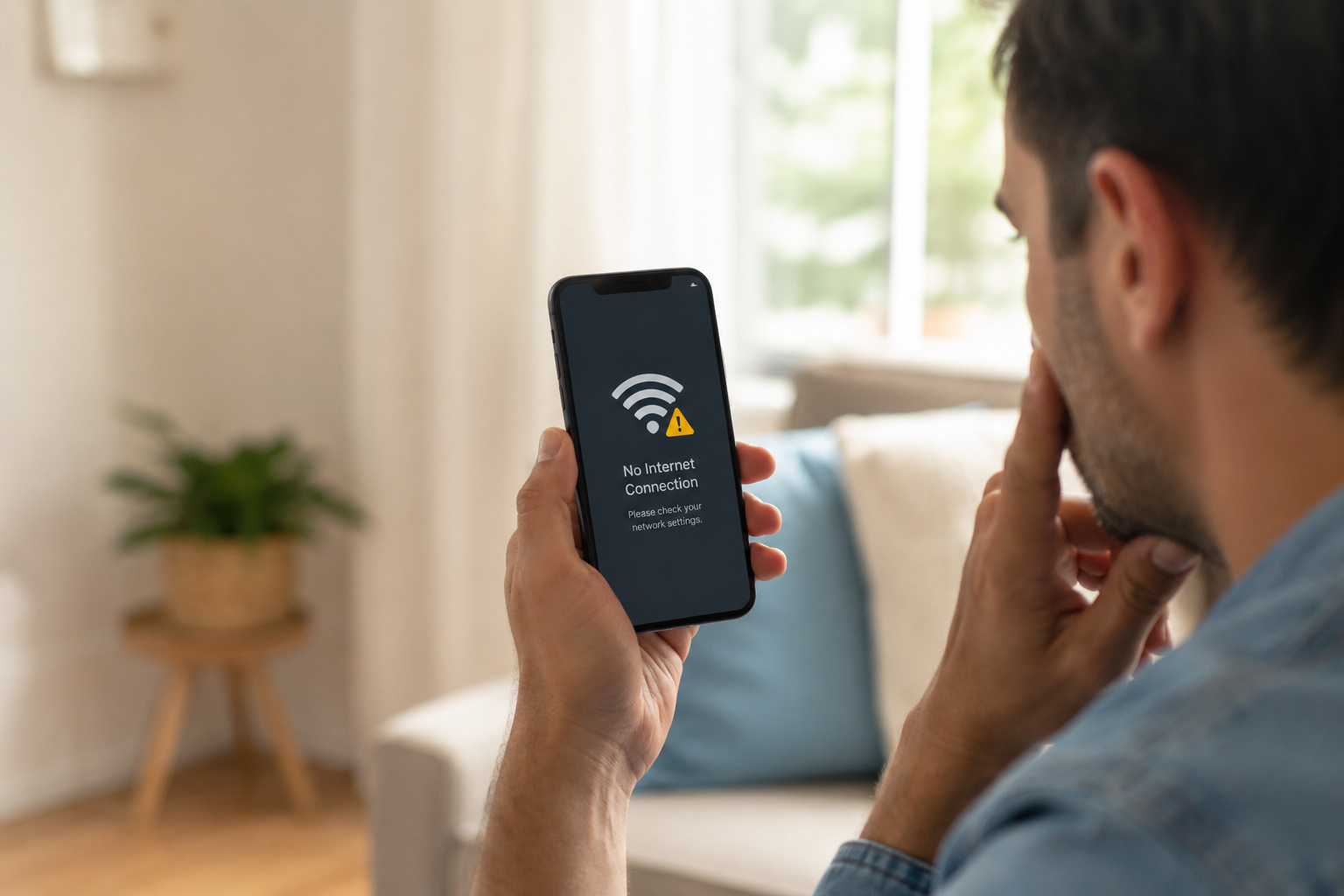
If your internet suddenly stopped working on your phone, it’s usually caused by one of a few common issues: a weak signal, a WiFi or mobile data setting that got turned off, an outage from your carrier or internet provider, or a small software glitch. Most of these problems can be fixed in a few minutes without calling anyone for help.
This guide walks you through exactly what to check first, why it’s happening, and how to fix it step by step — whether you’re on an iPhone or Android phone.
Quick Answer
Your phone’s internet usually stops working because of one of these reasons: WiFi or mobile data is turned off, you’re in a low-signal area, there’s a temporary outage, or your phone needs a restart. Start by checking your WiFi and data settings, then restart your phone. If that doesn’t work, check for an outage or reset your network settings.
Why Your Phone Says “Connected” But Has No Internet
This is one of the most confusing problems, and it’s very common. Your phone shows a WiFi or signal icon, but nothing loads. Pages spin and spin, and nothing happens.
This usually means your phone is connected to a network, but that network isn’t actually reaching the internet. It’s a router or carrier problem, not always your phone.
Common Reasons This Happens
- Your home WiFi router lost its own internet connection, even though your phone is still linked to it
- Your mobile carrier is having a temporary outage in your area
- Too many devices are connected to the same WiFi network at once
- Your phone picked up an old, weak WiFi signal instead of a stronger one nearby
A simple way to test this: try loading a website using mobile data instead of WiFi, or vice versa. If one works and the other doesn’t, you’ve already found where the problem is.
WiFi vs. Mobile Data: Figuring Out What’s Actually Broken
Before trying random fixes, it helps to know whether the issue is with your WiFi or your mobile data. This saves time and stops you from fixing the wrong thing.
If WiFi Isn’t Working
- Check if other devices on the same WiFi (like a laptop or another phone) also have no internet
- If yes, the problem is likely your router or your internet provider
- If only your phone is affected, the issue is more likely with your phone’s settings
If Mobile Data Isn’t Working
- Check if you have a signal (the bars in the corner of your screen)
- Make sure mobile data is turned on in your settings
- Confirm you haven’t gone over any data limits, if your plan has one
Knowing this difference is one of the biggest pain points people run into — most guides just say “restart your phone,” without helping you understand where the real problem is coming from.
Step-by-Step Guide to Fix Internet Problems on Your Phone
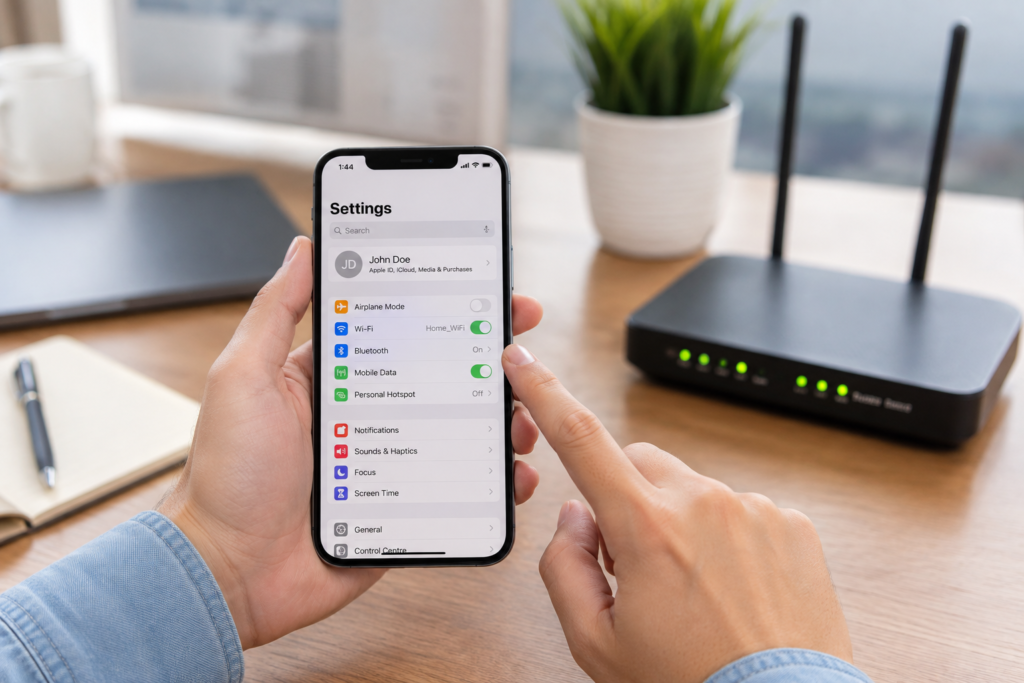
Follow these steps in order. Most people fix the problem within the first three steps.
- Turn Airplane Mode on, then off. This forces your phone to reconnect to WiFi and mobile networks from scratch. Wait about 10 seconds before turning it back off.
- Restart your phone. This clears small software glitches that often cause connection problems. It’s simple, but it fixes a surprising number of issues.
- Check your WiFi or mobile data settings. Sometimes these get switched off accidentally, especially after an update. Go to your phone’s settings and confirm both are turned on.
- Move closer to your router or to a window if using mobile data. Weak signal is a very common, very simple cause of internet trouble.
- Restart your WiFi router. Unplug it, wait about 30 seconds, then plug it back in. Give it a minute or two to fully reconnect.
- Check if there’s a known outage. Your internet provider or mobile carrier’s website usually shows outage updates for your area.
- Update your phone’s software. Outdated software can sometimes cause connection bugs that get fixed in newer updates.
- Reset your network settings if nothing else works. This clears saved WiFi passwords and settings, then rebuilds them fresh. It’s a bit more of a last resort, but it fixes deeper, hidden issues.
Common Problems or Mistakes
A lot of people run into the same avoidable mistakes when trying to fix this issue.
- Assuming it’s always the phone. Often, the real problem is the router, the carrier, or the app itself — not the phone.
- Skipping the restart. People jump straight to more complicated fixes and skip the simplest one, which solves the problem most often.
- Not checking other devices. If you don’t check whether other devices are also affected, you might waste time fixing the wrong thing.
- Forgetting about one specific app. Sometimes it’s not your whole internet connection — it’s just one app that’s having trouble. Try a different app or website to confirm.
- Ignoring recent updates. If the problem started right after updating your phone, that update is very likely connected to the issue.
Helpful Tips
- Keep your phone’s software updated regularly, since many connection bugs get fixed through updates
- If your internet works fine at home but not elsewhere, the issue is likely tied to mobile data or signal strength in that specific location
- Save your home WiFi password somewhere safe before resetting network settings, so reconnecting is quick
- If the problem keeps happening again and again, it’s worth mentioning that pattern to your carrier or internet provider — repeated issues are usually a bigger, ongoing problem
- Try turning off VPN apps temporarily, since they can sometimes block or slow down your connection
Frequently Asked Questions
1.Why does my phone say connected but no internet?
This usually means your phone is linked to WiFi or a network, but that network itself isn’t reaching the internet. It’s often a router or carrier issue rather than a problem with your phone.
2.Why is my WiFi working but not my mobile data, or the other way around?
This happens because WiFi and mobile data are two separate connections. One can go down while the other still works fine, which is why testing both helps you find the real cause.
3.How do I reset network settings on my phone?
On most phones, this option is found in the general or system settings menu, under a section for resetting the device. It clears saved WiFi networks and settings, then starts fresh.
4.Why did my internet stop working after a software update?
Updates sometimes reset certain settings or cause small, temporary bugs. Restarting your phone or checking your settings after an update usually clears this up.
5.How do I know if there’s an outage in my area?
Most internet providers and mobile carriers have an outage or status page you can check. This helps confirm if the problem is on their end and not your phone.
6.Why does my internet only work in certain places?
This is usually related to signal strength. Mobile data can be weaker in some areas, and WiFi signal fades the farther you are from the router.
7.Why is only one app not connecting to the internet?
If just one app is affected while everything else works fine, the issue is likely with that specific app rather than your overall internet connection.
Final Thoughts
Internet problems on your phone are frustrating, but they’re usually fixable without much trouble. Start with the basics — restarting your phone, checking your settings, and confirming your signal — before moving on to bigger steps like a network reset. In most cases, the issue clears up quickly once you know exactly where to look.
If the problem keeps coming back even after trying these steps, it may be worth reaching out to your mobile carrier or internet provider, since a repeated issue is often something on their end rather than your phone.
Author Bio:
MUHAMMAD AHMAD
SEO Specialist
Founder & Owner of TechXora.org and CareerZon.org
Also Read: