Introduction
Pairing your Android phone to a Smart TV is one of the easiest ways to enjoy videos, photos, games, music, and apps on a bigger screen. You can cast YouTube, mirror your full phone screen, use your phone as a remote, or connect with a cable when Wi-Fi is not working.
The best method depends on your TV brand, phone model, and what you want to do. Some people want to watch movies. Others want to show family photos, join video calls, or play mobile games on the TV. This guide explains the main ways to connect an Android phone to a Smart TV in simple steps.
What Does It Mean to Pair an Android Phone to a Smart TV?
Pairing means connecting your phone and TV so they can work together. But there are different types of connections.
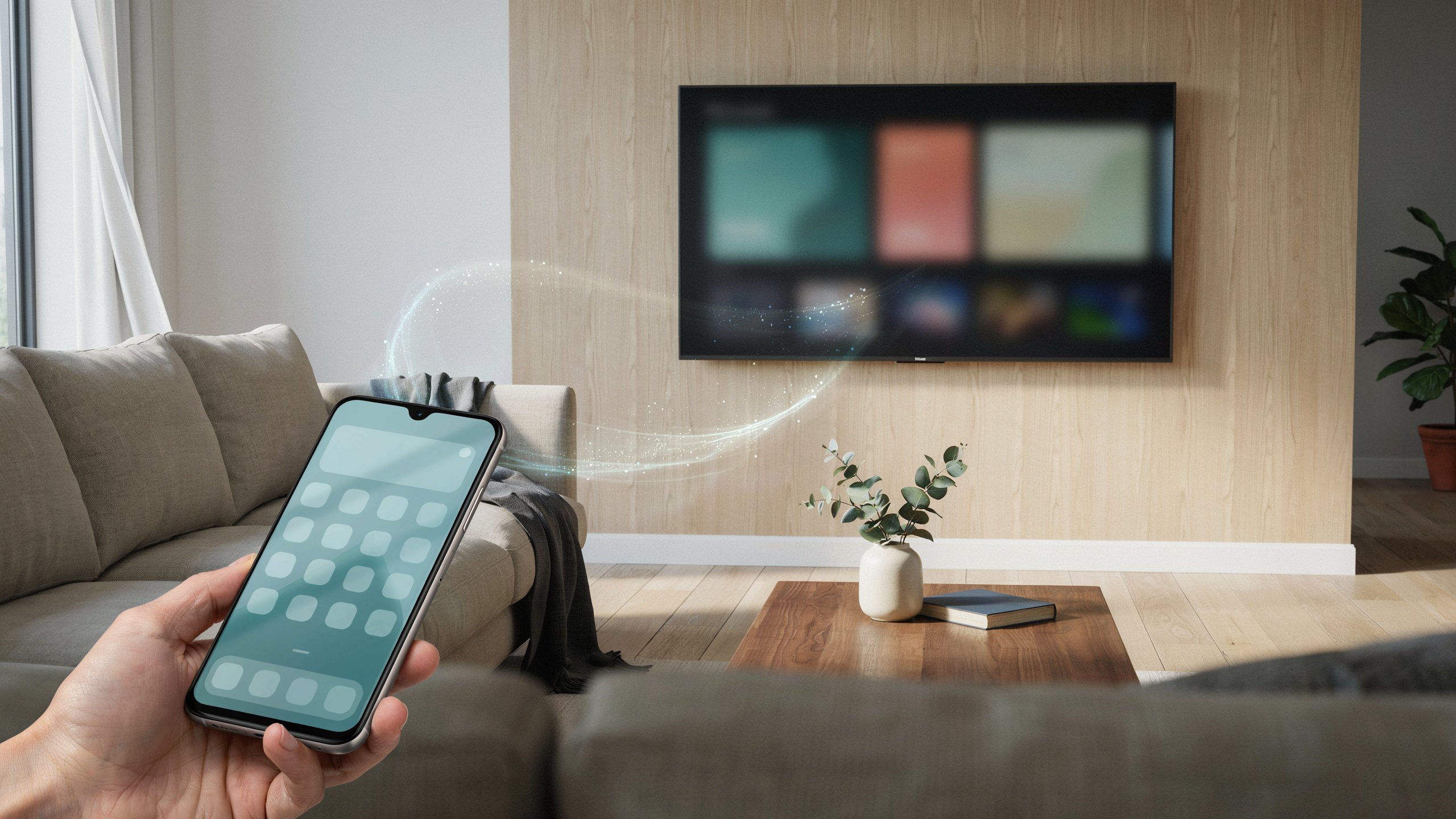
Casting sends a video, song, or app from your phone to the TV. Your phone works like a remote.
Screen mirroring shows your whole phone screen on the TV. Everything you do on your phone appears on the TV.
Bluetooth pairing connects your phone for sound, remote control, or simple device linking. It does not usually show your screen.
HDMI connection uses a cable. It is helpful when wireless pairing fails or your TV does not support casting.
Before You Start: Check These Things First
Before pairing your Android phone to your Smart TV, make sure both devices are ready.
Your phone and TV should be connected to the same Wi-Fi network. This is very important for casting and screen mirroring. Also, update your phone apps, TV software, and Google Home app if needed.
Turn on your Smart TV and keep it on the home screen. If your TV has Google TV, Android TV, Chromecast built-in, Samsung Smart View, LG Screen Share, or another casting feature, your phone should find it.
Also check that your phone has enough battery. Screen mirroring can use more power than normal phone use.
Method 1: Pair Android Phone to Smart TV Using Google Cast
Google Cast is one of the best ways to connect an Android phone to a Smart TV. It works with many Google TV, Android TV, Chromecast, Sony, TCL, Hisense, Philips, Vizio, and other supported TVs.
Steps to Use Google Cast
- First, connect your Android phone and Smart TV to the same Wi-Fi network.
- Open an app that supports casting, such as YouTube, Google TV, Spotify, or other video apps.
- Tap the Cast icon. It usually looks like a small screen with Wi-Fi lines in the corner.
- Choose your Smart TV from the list.
- Wait a few seconds. When the Cast icon changes, your phone is paired with the TV.
Now your content should play on the big screen. You can pause, play, skip, or change volume from your phone.
Method 2: Mirror Your Android Screen to a Smart TV
Screen mirroring is useful when you want to show your full phone screen. This is great for photos, websites, presentations, apps, and games.
Steps to Mirror with Google Home
- Install or open the Google Home app on your Android phone.
- Make sure your TV or Chromecast device is on the same Wi-Fi network.
- Tap your TV device in the Google Home app.
- Choose Cast my screen.
- Tap Start now.
Your full Android screen should now appear on your Smart TV. To stop, open Google Home again and tap Stop mirroring.
Method 3: Pair Samsung Phone to Smart TV Using Smart View
If you use a Samsung Galaxy phone, Smart View is a simple way to mirror your screen.
Swipe down from the top of your phone screen to open Quick Settings. Look for Smart View. If you do not see it, swipe again or tap the edit button to add it.
- Tap Smart View.
- Choose your Smart TV from the list.
- Tap Start now.
- Accept the connection request on your TV if it appears.
This method works well with many Samsung TVs and some other smart TVs that support screen sharing.
Method 4: Pair Android Phone to Smart TV with Bluetooth
Bluetooth is not the best choice for screen sharing, but it can help with sound, remote features, or some TV apps.
- Open Settings on your Android phone.
- Tap Connected devices.
- Choose Pair new device.
- On your Smart TV, open Bluetooth settings and turn Bluetooth on.
- Select your TV name on the phone.
- Confirm the pairing code if asked.
Use Bluetooth when you want to connect audio or basic controls. Use casting or mirroring when you want video on the TV.
Method 5: Connect Android Phone to Smart TV with HDMI
If wireless pairing does not work, use a USB-C to HDMI adapter. This method is stable and does not need Wi-Fi.
- Plug the USB-C end into your Android phone.
- Plug the HDMI cable into the adapter and the TV.
- Change your TV input to the correct HDMI port.
- Your phone screen may appear on the TV.
Not all Android phones support HDMI output, so check your phone model first.
Common Problems and Easy Fixes
If your Android phone cannot find your Smart TV, check the Wi-Fi first. Both devices must be on the same network. Do not connect one device to guest Wi-Fi and the other to main Wi-Fi.
Restart your phone, TV, and router. This often fixes pairing issues.
Update your TV system and the apps you use for casting. Old software can stop devices from showing up.
If casting works in one app but not another, the app may not support your TV. Try another app or use screen mirroring instead.
If the video lags, move your phone and TV closer to the router. Also close apps running in the background.
Frequently Asked Questions (FAQ)
1: Can I pair any Android phone with any Smart TV?
Most Android phones can connect to many Smart TVs, but support depends on the TV brand and features. Google Cast, Chromecast, Smart View, or screen mirroring make pairing easier.
2: Do I need Wi-Fi to connect my Android phone to a Smart TV?
For wireless casting and mirroring, yes, you usually need Wi-Fi. If you do not have Wi-Fi, try an HDMI cable or a supported direct connection feature.
3: Why is my Smart TV not showing on my Android phone?
Your phone and TV may be on different Wi-Fi networks. The TV may also need a software update, or casting may be turned off in TV settings.
4: Is casting better than screen mirroring?
Casting is better for watching videos because it is smoother and uses less phone battery. Screen mirroring is better when you want to show your whole phone screen.
5: Can I use my Android phone as a TV remote?
Yes. Many Smart TVs support remote apps. Google TV users can use the Google TV app, while Samsung, LG, and other brands may have their own remote apps.
Conclusion
Pairing an Android phone to a Smart TV is simple when you choose the right method. Use Google Cast for videos and apps, screen mirroring for showing your whole phone screen, Smart View for Samsung devices, Bluetooth for audio or simple pairing, and HDMI when wireless options fail.
For the smoothest setup, keep both devices on the same Wi-Fi network, update your apps, and restart your devices if they do not connect. Once paired, your Android phone becomes a powerful tool for watching, sharing, and controlling content on your Smart TV.
Author:
Muhammad Ahmad
SEO Specialist
Founder of TechXora.org.