If you want more screen space for work, gaming, or streaming, connecting your laptop to two monitors is one of the easiest upgrades you can make. Most modern laptops support dual monitors right out of the box. All you need is the right cables (or a dock) and a few clicks in your display settings.
In this guide, you’ll learn exactly how to hook up a laptop to two monitors, fix common connection problems, and get your dual-screen setup working smoothly.
Quick Answer
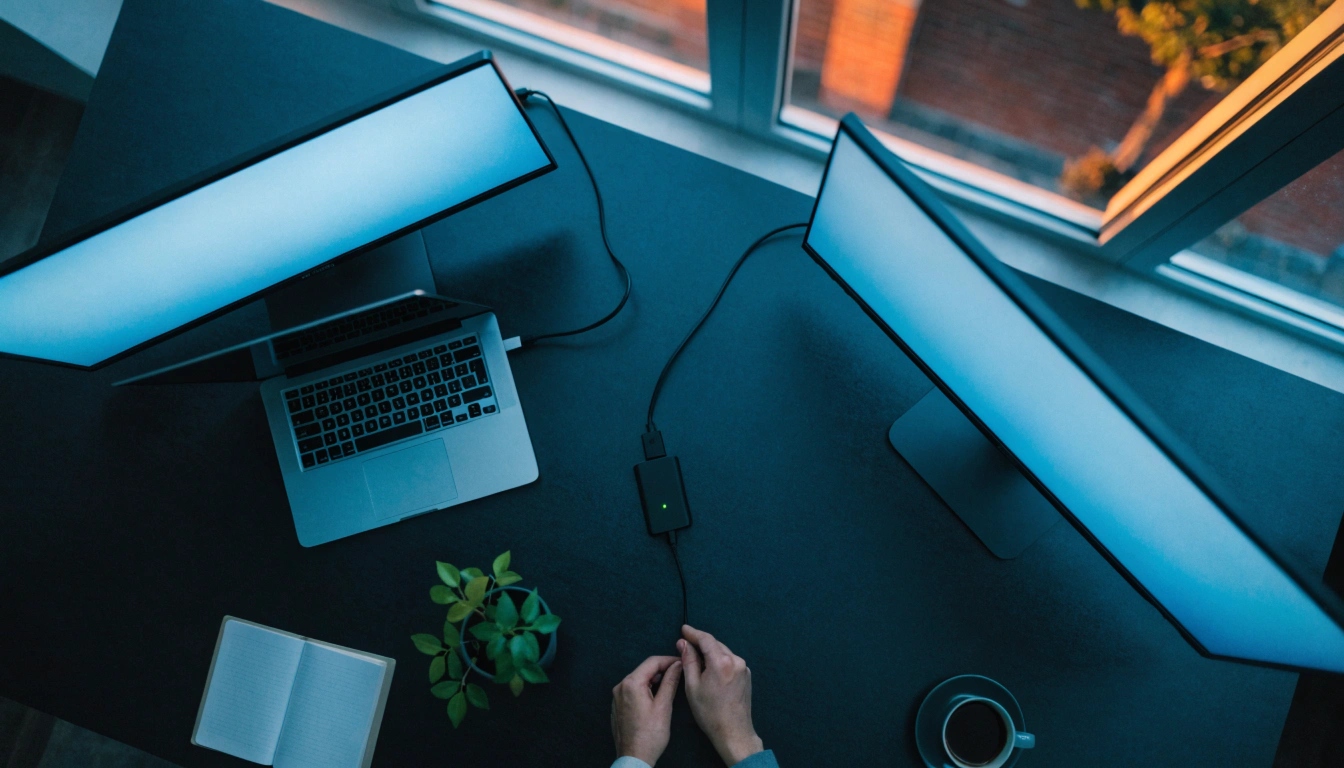
To hook up a laptop to two monitors, check how many video output ports your laptop has (like HDMI, USB-C, or DisplayPort). Connect each monitor to a separate port, or use a docking station or USB-C hub if your laptop only has one port. Then go to your display settings and choose how you want the screens to work together, either extended or mirrored.
Understanding Your Laptop’s Video Ports
Before connecting anything, it helps to know what ports your laptop actually has. This tells you what cables or adapters you’ll need.
Common Ports You Might See
Most laptops today include one or more of these:
- HDMI – A common port for connecting to monitors and TVs.
- USB-C or Thunderbolt – A small, reversible port that can carry video, data, and power.
- DisplayPort – Often found on business laptops and gaming laptops.
- VGA – An older, less common port still used on some office monitors.
Take a quick look at the sides of your laptop. If you see only one video port, don’t worry. You can still connect two monitors using a dock or hub, which we’ll cover shortly.
What You Need Before You Start
Having the right equipment ready makes the setup process much faster.
Basic Requirements
- A laptop with at least one video output port
- Two monitors
- The correct cables for each monitor (matching your laptop’s ports)
- A USB-C hub, docking station, or DisplayLink adapter (only needed if your laptop has a single video port)
When You’ll Need an Adapter
If your laptop only has one HDMI or USB-C port, you can’t plug in two monitors directly. In that case, a USB-C hub or docking station lets you add extra video outputs so both monitors can connect at once.
Step-by-Step Guide: How to Hook Up a Laptop to Two Monitors
Follow these steps to get your dual monitor setup working.
- Turn off your monitors and laptop. This isn’t always required, but it helps avoid display glitches during setup.
- Identify your laptop’s ports. Check whether you have HDMI, USB-C, DisplayPort, or a mix of these.
- Connect the first monitor. Plug one end of the cable into your laptop and the other into the monitor.
- Connect the second monitor. Use another port on your laptop, or plug into your USB-C hub or docking station if needed.
- Power on both monitors and your laptop. Give your system a moment to detect the new displays.
- Open your display settings.
- On Windows: Right-click the desktop and select “Display settings.”
- On Mac: Go to System Settings, then Displays.
- Choose your display mode. Select “Extend these displays” to use both screens as one large workspace, or “Duplicate” to show the same content on both.
- Arrange your screens. Drag the monitor icons in the settings menu to match their real-life position on your desk. This makes your mouse movement feel natural between screens.
- Adjust resolution and orientation if needed. Set each monitor to its recommended resolution for the sharpest image.
Once you’ve done this, your laptop should be successfully connected to two monitors.
Common Problems or Mistakes
Even with the right cables, a few small issues can trip people up.
One monitor isn’t detected. Double-check that the cable is fully plugged in on both ends. Try a different port or cable to rule out a faulty connection.
Screens show a blank or flickering display. This is often caused by an outdated graphics driver. Updating your laptop’s graphics driver usually solves this.
Only mirroring works, not extending. Some laptops or hubs have a limit on how many independent displays they can output at once. If extending doesn’t work, your laptop’s graphics hardware may only support mirrored output for multiple external screens.
Wrong resolution or blurry text. This usually means the monitor isn’t set to its native resolution. Adjust it manually in your display settings.
Mouse jumps to the wrong screen. This happens when the monitor arrangement in your settings doesn’t match your physical desk setup. Rearrange the display icons to fix it.
Helpful Tips
- Use identical or similar-sized monitors for a smoother visual experience.
- Label your cables if you frequently switch setups, so reconnecting is faster.
- Keep your laptop’s graphics drivers updated to avoid display issues.
- If you work with a laptop lid closed, make sure your laptop is plugged into power first, since closing the lid can put some laptops to sleep.
- Position your primary monitor directly in front of you and use the second screen for secondary tasks like chat apps or reference material.
Frequently Asked Questions
Q.1 Can every laptop connect to two monitors?
Most modern laptops can, but it depends on the graphics hardware and available ports. Checking your laptop’s specifications or trying a hub can help confirm this.
Q.2 Do I need a docking station to use two monitors?
Not always. If your laptop has two separate video output ports, you can connect both monitors directly without a dock.
Q.3 What’s the difference between extending and duplicating displays?
Extending gives you more workspace by treating both screens as one large desktop. Duplicating shows the exact same content on both screens.
Q.4 Why is only one monitor working?
This is often due to a loose cable, an unsupported port combination, or outdated drivers. Try reconnecting the cables or updating your graphics driver.
Q.5 Can I use a USB-C hub to connect two monitors?
Yes, many USB-C hubs and docking stations support dual monitor output, especially if your laptop only has one video port.
Q.6 Does connecting two monitors slow down my laptop?
It can use more graphics resources, especially with high resolutions, but most modern laptops handle dual monitors without noticeable slowdown.
Q.7 How do I change which monitor is my main display?
In your display settings, select the monitor you want as primary and check the box or option labeled “Make this my main display.”
Conclusion
Learning how to hook up a laptop to two monitors is simpler than it looks. Once you know your laptop’s ports, gather the right cables or a hub, and adjust a few settings, you’ll have a smooth dual-screen setup ready for work or play. If something doesn’t connect right away, don’t worry. Most issues come down to a loose cable or an outdated driver, both of which are quick fixes.
Author:
M. Ahmad is an SEO and GEO Specialist and the Founder of Careerzon.org, a platform dedicated to career development and professional growth. He helps readers navigate job searching, resume building, career planning, and skill development through clear, practical, and easy-to-follow guidance. Combining his SEO and GEO expertise with a focus on career content, M. Ahmad ensures Careerzon.org delivers helpful, people-first advice that’s easy to find and easy to understand — whether you’re searching on Google or asking an AI assistant.
13 Inch Laptop vs A4 Paper: Which Is Bigger?
How to Get the Serial Number of a Laptop (Easy Ways)
Vostro vs Inspiron: Which Dell Laptop Fits You?