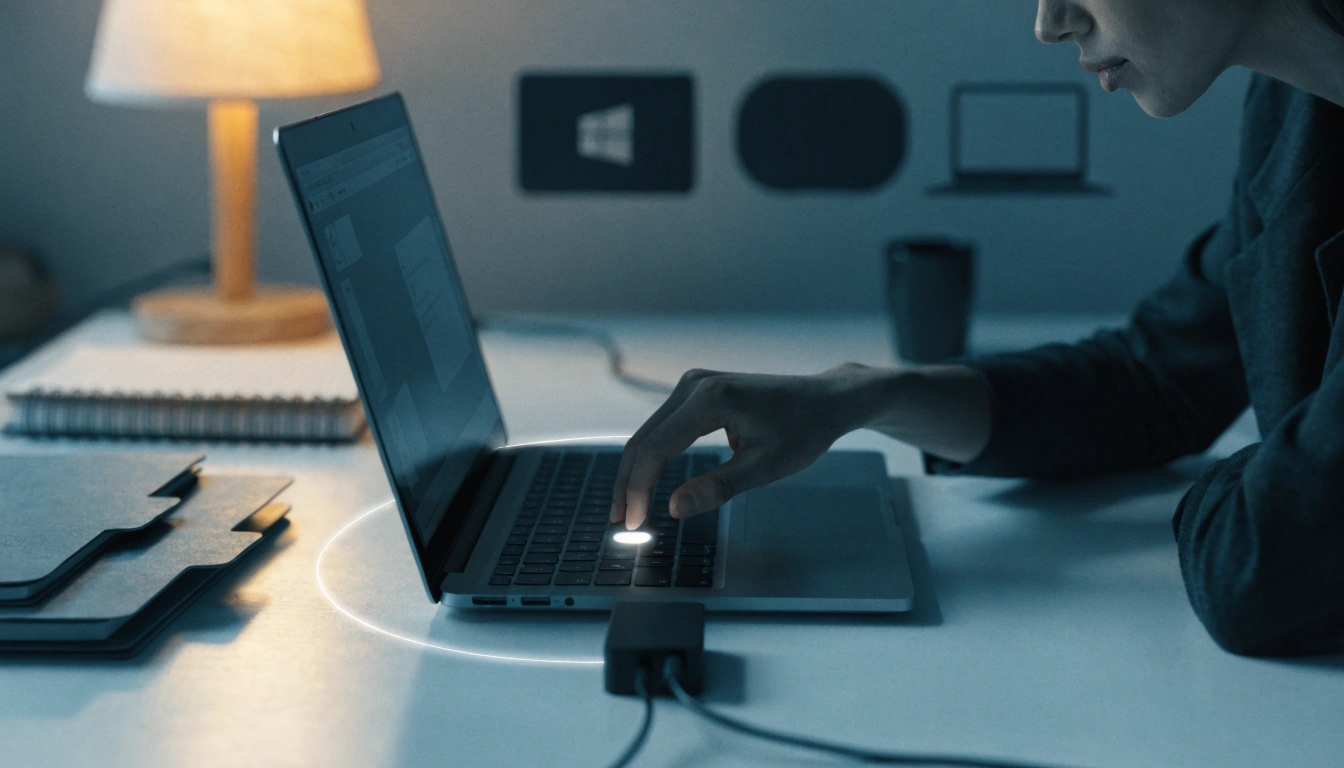
If you are asking, how do i restart my laptop, the easiest way is to click the power option on your device and choose Restart. Restarting turns your laptop off and back on automatically. It helps refresh the system, close stuck apps, install updates, and fix small performance issues.
A restart is different from shutting down. When you restart, your laptop quickly reloads the operating system so it can work smoothly again.
Quick Answer
To restart your laptop, open the Start menu on Windows, click the Power icon, and select Restart. On a MacBook, click the Apple menu and choose Restart. On a Chromebook, click the time area, select the power icon, turn it off, and then turn it back on.
What Does Restarting a Laptop Mean?
Restarting a laptop means your device closes all active programs, shuts down the system, and starts again by itself. It is a safe way to refresh your laptop without fully turning it off for a long time.
Many users restart their laptop when it becomes slow, freezes, or acts strangely. It can also help after installing software, drivers, or system updates.
Restarting does not delete your personal files. Your photos, documents, downloads, and apps stay saved. However, unsaved work in open apps may be lost, so always save your files first.
Why Restarting Helps
A restart clears temporary system memory and gives your laptop a fresh start. It can stop background apps that are using too much power or memory.
For example, if your browser is slow or your keyboard stops responding, restarting may fix the issue. It is often the first simple step before trying advanced troubleshooting.
When Should You Restart Your Laptop?
You should restart your laptop when it feels slow, freezes, or shows small errors. Restarting is also useful when your Wi-Fi is not working, apps are not opening, or your laptop has just installed updates.
You may also restart your laptop after installing new software. Some programs need a restart before they work correctly.
If your laptop works fine, you do not need to restart it all the time. But restarting it once in a while can help keep performance stable.
Restart vs Shut Down
Restart and shut down are not exactly the same. A restart turns the laptop off and on again automatically. A shut down turns it off completely until you press the power button.
Use Restart when you want to refresh the system or fix a small issue. Use Shut Down when you are done using the laptop for the day.
Step-by-Step Guide: How Do I Restart My Laptop?
Here are simple steps for different laptop types.
How to Restart a Windows Laptop
Click the Start button on the taskbar. Then click the Power icon and choose Restart.
Your laptop will close open apps and restart. If updates are ready, Windows may install them during the restart. This can take a little longer than normal.
You can also press Ctrl + Alt + Delete, click the power icon, and select Restart if your screen is still working.
How to Restart a MacBook
Click the Apple logo in the top-left corner of the screen. Choose Restart from the menu.
A message may appear asking if you want to reopen windows when you log back in. You can choose based on your need. Then click Restart.
How to Restart a Chromebook
Click the time area in the bottom-right corner. Select the Power icon to turn off the Chromebook.
After it turns off, press the power button again to start it. Some Chromebook models may also restart after updates automatically.
How to Force Restart a Frozen Laptop
If your laptop is completely frozen, press and hold the power button for about 10 seconds until it turns off. Wait a few seconds, then press the power button again.
Only use this method when the normal restart option does not work. A forced restart can close apps suddenly, so unsaved work may be lost.
Common Problems or Mistakes
One common mistake is restarting without saving work. Always save documents, browser drafts, or editing projects before restarting.
Another mistake is pressing the power button quickly many times. This can confuse the system or delay startup. Press it once and wait.
Some users also unplug the charger during updates. Avoid doing this. If your laptop is installing updates, keep it charged and let the process finish.
If your laptop keeps restarting again and again, there may be a software, update, battery, or hardware issue. In that case, check for error messages or contact support.
Helpful Tips
Restart your laptop before trying complicated fixes. Many small problems can be solved with one restart.
Close important apps before restarting. This helps prevent data loss and makes the restart smoother.
Keep your laptop connected to power if updates are installing. This is especially important if the battery is low.
Do not force restart unless the laptop is stuck. Normal restart is safer for daily use.
If restarting does not fix the problem, try checking updates, scanning for malware, or freeing up storage space.
Frequently Asked Questions
1. How do I restart my laptop using the keyboard?
On Windows, press Ctrl + Alt + Delete, click the power icon, and select Restart. You can also press Alt + F4 on the desktop and choose Restart from the menu.
2. Will restarting my laptop delete my files?
No, restarting does not delete saved files. But unsaved work in open apps may be lost, so save everything first.
3. Why is my laptop taking so long to restart?
Your laptop may be installing updates, closing background apps, or fixing system files. Wait patiently, especially if you see an update message.
4. Is it good to restart my laptop every day?
It is not required for every user, but restarting often can help if your laptop slows down or you use many apps daily.
5. What should I do if my laptop is frozen?
First, wait for a minute. If nothing works, hold the power button for about 10 seconds to force it off. Then turn it on again.
6. What is the difference between restart and sleep?
Sleep keeps your laptop in a low-power state and opens quickly later. Restart fully reloads the system and is better for fixing issues.
7. Why does my laptop restart after updates?
Some updates need a restart to finish installation. This helps the system apply changes correctly.
Conclusion
If you are still wondering how do i restart my laptop, the safest method is to use the restart option from your system menu. Windows, Mac, and Chromebook all have simple restart options that refresh the device without deleting saved files.
Restarting is a quick first step when your laptop is slow, frozen, or not working normally. Save your work, choose Restart, and let your laptop reload properly.
Author: Muhammad Ahmad
M. Ahmad is an SEO and GEO Specialist and the Founder of TechXora.org. With 3+ years of experience in digital marketing, he helps websites grow through SEO, GEO, content creation, and online marketing.
He writes about technology, AI tools, WordPress, web hosting, cybersecurity, and SEO. Through TechXora.org, he shares easy-to-follow guides, useful tips, and the latest tech updates to help readers learn and grow online.
Also Read: