Introduction
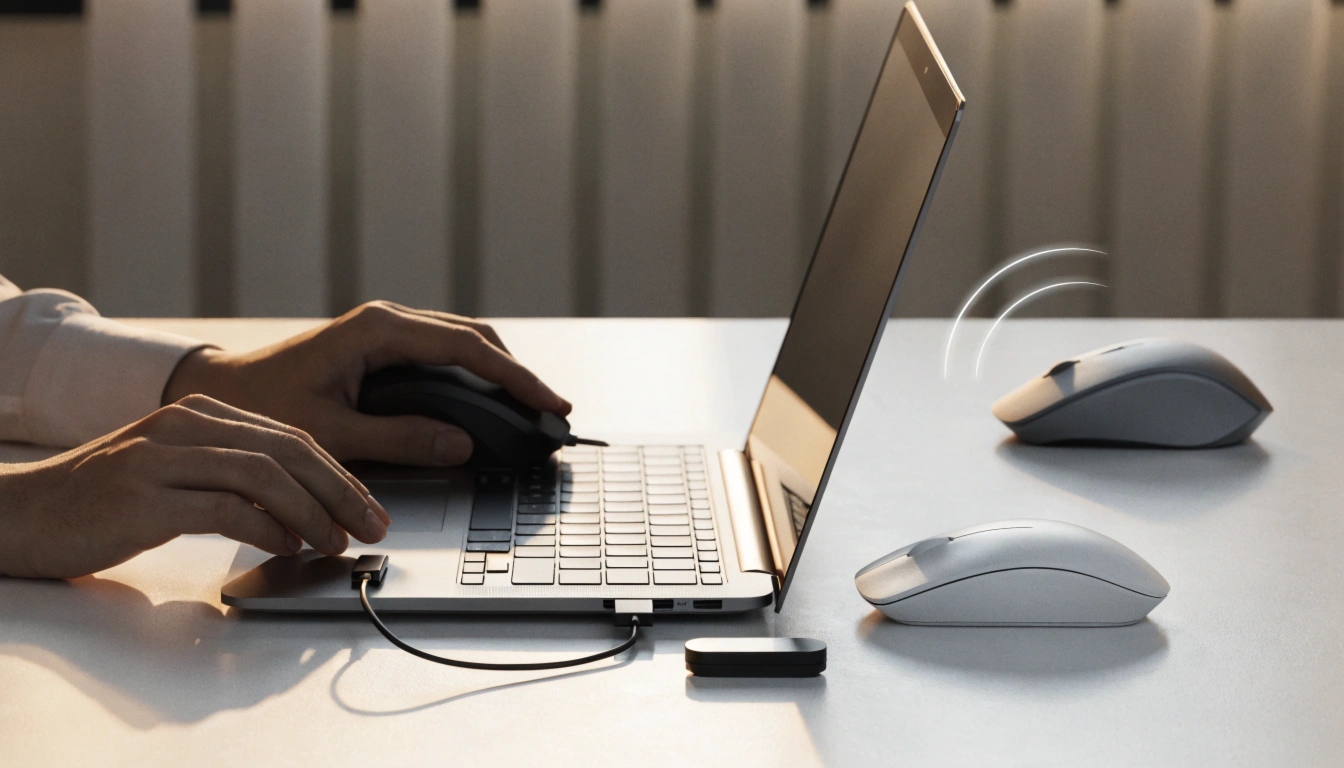
If you are asking, “How do I Connect a Mouse to a Laptop,” the answer depends on the type of mouse you have. Some mice connect with a cable. Some use Bluetooth. Others come with a small USB receiver, also called a dongle.
The good news is that most laptop mice are easy to set up. You do not need to be a tech expert. In this guide, you will learn how to connect a wired mouse, a wireless USB mouse, and a Bluetooth mouse to a Windows laptop or MacBook. You will also learn what to do if your mouse does not work after connecting.
Check What Type of Mouse You Have
Before you start, look at your mouse and check how it connects.
A wired mouse has a cable with a USB plug. A wireless USB mouse usually comes with a small receiver that plugs into your laptop. A Bluetooth mouse connects without a receiver, but your laptop must have Bluetooth turned on.
Some modern laptops have USB-C ports instead of regular USB-A ports. If your mouse uses a regular USB plug and your laptop only has USB-C, you may need a USB-C adapter or hub.
How to Connect a Wired Mouse to a Laptop
A wired mouse is the simplest option. It is best for people who want a stable connection and do not want to worry about batteries.
Steps to Connect a Wired Mouse
First, turn on your laptop. Plug the mouse cable into a USB port on the laptop. Wait a few seconds while the laptop detects the mouse. Move the mouse to check if the pointer moves on the screen.
Most wired mice work right away. This is called plug and play. You usually do not need to install extra software.
If the mouse does not work, try another USB port. Also check if the cable is damaged. If you are using a USB hub, plug the mouse directly into the laptop to test it.
How to Connect a Wireless USB Mouse to a Laptop
A wireless USB mouse uses a tiny receiver. This receiver sends signals between the mouse and laptop.
Steps to Connect a Wireless USB Mouse
Open the battery cover of the mouse and insert the batteries if needed. Some mice have built-in rechargeable batteries, so make sure the mouse is charged.
Next, find the USB receiver. It may be inside the battery area or included in the box. Plug the receiver into a USB port on your laptop. Turn on the mouse using the switch on the bottom.
Wait a few seconds. Then move the mouse. If the pointer moves, your mouse is connected.
Keep the receiver safe. Without it, many wireless USB mice cannot connect to your laptop.How to Connect a Bluetooth Mouse to a Windows Laptop
A Bluetooth mouse does not need a USB receiver. This is useful if your laptop has fewer ports.
Windows 11 and Windows 10 Steps
Turn on your Bluetooth mouse. Press and hold the pairing button on the mouse until the light starts blinking. This means the mouse is ready to connect.
On your laptop, open Settings. Go to Bluetooth & devices. Turn Bluetooth on. Click Add device, then choose Bluetooth. When your mouse name appears, click it. Wait for the setup to finish.
After pairing, move the mouse to test it. Once connected, your laptop should remember the mouse next time.
How to Connect a Bluetooth Mouse to a MacBook
Connecting a Bluetooth mouse to a MacBook is also simple.
Turn on the mouse and put it in pairing mode. On your MacBook, click the Apple menu and open System Settings. Choose Bluetooth. Make sure Bluetooth is turned on.
Look for your mouse under nearby devices. Click Connect next to the mouse name. After a few seconds, your mouse should be ready to use.
If you use an Apple Magic Mouse, make sure it is charged. Some models may need to be connected with a cable first before pairing.
What to Do If Your Mouse Does Not Connect
Sometimes the mouse may not work right away. Do not worry. Most problems have simple fixes.
First, check the power. Make sure the mouse is turned on and the batteries are not dead. If it is rechargeable, charge it for a while.
Second, check the connection. For a wired mouse, try another USB port. For a wireless USB mouse, remove and reconnect the receiver. For a Bluetooth mouse, turn Bluetooth off and on again.
Third, restart your laptop. This can fix small software problems.
Fourth, remove old mouse connections. In Bluetooth settings, forget or remove the mouse, then pair it again.
Fifth, update your laptop. Updates can fix driver problems and improve device support.
Best Mouse Type for Your Laptop
Each mouse type has its own benefit.
A wired mouse is best for gaming, office work, and users who want no delay. A wireless USB mouse is good for everyday use and travel. A Bluetooth mouse is best when you want to save USB ports and keep your desk clean.
If you use your laptop for school, work, or browsing, any modern mouse should work well. If you edit videos, design graphics, or play games, choose a mouse with better comfort, good tracking, and adjustable speed.
Tips for a Better Mouse Experience
Use your mouse on a flat surface. A mouse pad can make movement smoother. Keep the sensor area clean. Dust can make the pointer jump or move badly.
Also, adjust the pointer speed in your laptop settings. If the mouse feels too fast or too slow, changing the speed can make it easier to control.
For wireless mice, keep extra batteries nearby or charge the mouse often. If your mouse starts lagging, low battery power may be the reason.
Frequently Asked Questions (FAQ)
1: Can I connect any mouse to any laptop?
Most modern mice work with most laptops. You only need the right connection, such as USB, USB-C, Bluetooth, or a wireless receiver.
2: Why is my laptop not finding my Bluetooth mouse?
Your mouse may not be in pairing mode. Press and hold the pairing button until the light blinks. Also make sure Bluetooth is turned on.
3: Do I need internet to connect a mouse?
No, you usually do not need internet. Most mice connect directly through USB or Bluetooth.
4: Can I use a mouse with a MacBook?
Yes. You can use a wired, wireless USB, or Bluetooth mouse with a MacBook. You may need an adapter if your MacBook only has USB-C ports.
5: Why is my wireless mouse lagging?
Lag can happen because of low batteries, distance, a weak receiver signal, or a dirty sensor. Replace the batteries, move closer, or clean the mouse sensor.
Conclusion
Connecting a mouse to a laptop is simple when you know which type of mouse you have. A wired mouse only needs a USB port. A wireless USB mouse needs its receiver. A Bluetooth mouse must be paired through your laptop settings.
If your mouse does not connect, check the power, USB port, Bluetooth settings, and batteries. With the right steps, you can start using your mouse in just a few minutes and make your laptop easier and more comfortable to use.
Author: Muhammad Ahmad
M. Ahmad is an SEO and GEO Specialist and the Founder of TechXora.org. With 3+ years of experience in digital marketing, he helps websites grow through SEO, GEO, content creation, and online marketing.
He writes about technology, AI tools, WordPress, web hosting, cybersecurity, and SEO. Through TechXora.org, he shares easy-to-follow guides, useful tips, and the latest tech updates to help readers learn and grow online.