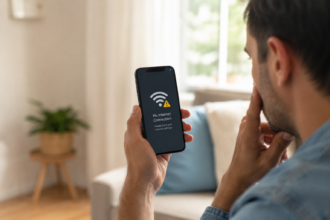
If your phone suddenly says SOS only, it means your phone can’t connect to your normal cell network, but it can still detect a nearby signal strong enough for emergency calls. This usually happens because of a weak signal, a SIM card issue, a carrier outage, or a setting problem — not because your phone is broken.
The good news? Most of the time, this fixes itself in a few minutes, and there are simple steps you can try right now.
Quick Answer
“SOS only” means your phone has lost its regular connection to your cell carrier’s network. It can still reach emergency services because phones are designed to use any available signal for emergencies, even from another carrier. The most common causes are poor signal, a SIM card problem, a temporary carrier outage, or airplane mode being accidentally turned on.
What Does “SOS Only” Actually Mean?
When your phone shows SOS only, it’s telling you two things at once:
- You are not connected to your normal carrier network
- Your phone still senses some signal nearby that can be used for emergency calls only
This is a safety feature built into every modern smartphone. Even without your regular service, phones are designed to borrow signal from any available tower to reach 911 or local emergency numbers.
Is This the Same as “No Service”?
Not exactly. “No Service” means there’s no signal at all — not even for emergencies. “SOS only” means there’s some signal, just not enough (or not the right kind) to connect you to your own carrier’s normal network.
Common Reasons Your Phone Says SOS Only
There are a few usual suspects behind this issue. Here are the most common ones.
1. Weak or No Signal in Your Area
If you’re indoors, underground, in a rural area, or somewhere with thick walls, your phone may struggle to find your carrier’s signal.
2. SIM Card Problems
A loose, damaged, or outdated SIM card can disconnect your phone from your carrier’s network even if signal is otherwise fine.
3. Carrier Network Outage
Sometimes it’s not your phone at all. Carriers occasionally have outages or maintenance windows that affect service in certain areas.
4. Accidental Airplane Mode
It’s easy to bump this setting by accident, especially in a pocket or bag.
5. Software Glitch or Update Issue
Occasionally, a phone update or temporary bug causes the device to lose its network connection until it’s restarted.
6. Account or Billing Issue
In rare cases, an account problem with your carrier (like a payment issue) can restrict normal service while still allowing emergency access.
Step-by-Step Guide to Fix SOS Only
Try these steps in order. Most people find the fix within the first two or three steps.
Step 1: Check Airplane Mode Open your settings and make sure airplane mode is off.
Step 2: Restart Your Phone A simple restart resolves many temporary network glitches.
Step 3: Move to a Different Location Walk toward a window, go outside, or move to higher ground to check if signal improves.
Step 4: Remove and Reinsert Your SIM Card Turn off your phone, take out the SIM tray, check that the SIM looks undamaged, then reinsert it firmly.
Step 5: Toggle Airplane Mode On and Off This forces your phone to search for network towers again.
Step 6: Check for a Carrier Outage Use another device or a family member’s phone to see if others in your area are having the same issue.
Step 7: Update Your Phone’s Software Go to your settings and check if a system update is available and install it.
Step 8: Reset Network Settings This clears saved network configurations without deleting your photos or apps.
Step 9: Contact Your Carrier If nothing works after these steps, your carrier can check your account and SIM status remotely.
Common Problems or Mistakes
- Assuming the phone is broken — Most SOS-only issues are location or SIM related, not hardware failures.
- Ignoring a loose SIM card — Even a slightly misaligned SIM can cause this.
- Ignoring the reset step — Many people restart the phone but skip the network settings reset, which fixes more cases than expected.
- Not checking for outages — Assuming it’s a personal device issue when it’s actually a wider carrier problem.
- Traveling internationally without checking settings — SOS only is common when roaming settings aren’t properly configured.
Helpful Tips
- Keep your phone’s software updated to avoid unnecessary network bugs.
- If you travel often, check your carrier’s roaming settings before your trip.
- Save your carrier’s support number on another device in case you need help while your phone shows SOS only.
- If SOS only happens frequently in the same location, it may simply be a weak-coverage area rather than a phone issue.
- Consider a case check — very rarely, an antenna area on the phone can be affected by a poor-quality thick case.
Frequently Asked Questions
Q.1 Does SOS only mean my phone has no service?
No. It means normal service is unavailable, but emergency calling is still possible through any nearby signal.
Q.2 Can I still receive text messages when it says SOS only?
Usually not through regular cellular texting, though messages sent over Wi-Fi (like messaging apps) may still work if you’re connected to Wi-Fi.
Q.3 Will SOS only fix itself?
Often yes, especially if it’s caused by a temporary signal loss or carrier issue. If it continues for a long time, try the steps above.
Q.4 Can I still call 911 if my phone shows SOS only?
Yes. This mode exists specifically so your phone can reach emergency services even without normal service.
Q.5 Is SOS only a sign of a broken phone?
Not usually. It’s more often related to signal, SIM cards, or carrier settings than hardware damage.
Q.6 Why does my phone say SOS only at home?
This can happen if your home has weak signal coverage indoors, especially in basements or rooms far from windows.
Q.7 Does SOS only drain the battery faster?
Your phone may search harder for a signal during this time, which can slightly increase battery usage until service is restored.
Conclusion
Seeing “SOS only” on your phone can feel alarming, but in most cases, it’s a temporary and fixable issue related to signal strength, your SIM card, or a quick settings glitch. Start with the simple steps — checking airplane mode, restarting your phone, and reseating your SIM — before assuming anything serious is wrong. If the problem continues after trying these fixes, reaching out to your carrier is the best next step to get your normal service back.
Author:
M. Ahmad is an SEO and GEO Specialist and the Founder of Careerzon.org, a platform dedicated to career development and professional growth. He helps readers navigate job searching, resume building, career planning, and skill development through clear, practical, and easy-to-follow guidance. Combining his SEO and GEO expertise with a focus on career content, M. Ahmad ensures Careerzon.org delivers helpful, people-first advice that’s easy to find and easy to understand — whether you’re searching on Google or asking an AI assistant.
Also Read
Computer Information Technology vs Computer Science: Key Differences
Why Does My Phone Go Straight to Voicemail? (Fixed)
Why Does My Phone Get Hot When Charging? (Explained)