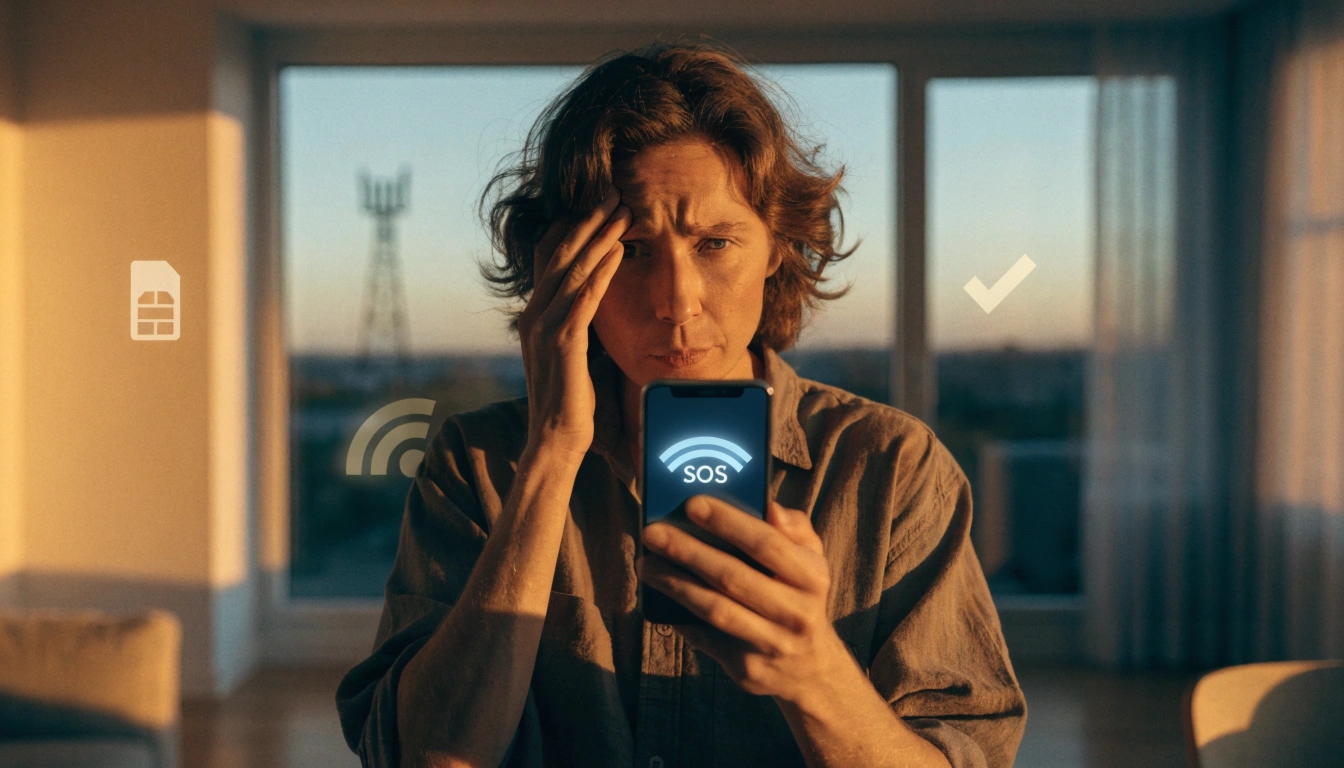
If your phone suddenly shows “SOS” or “SOS Only” instead of your usual Verizon signal bars, it means your phone can’t connect to Verizon’s network but can still reach emergency services through another carrier’s tower nearby. It’s usually caused by a weak signal area, a network outage, a SIM card issue, or an account problem — and most of the time, it’s fixable in a few minutes.
This guide walks you through exactly why this happens and how to get your signal back.
Quick Answer
SOS mode on a Verizon phone means your device has lost its regular connection to Verizon but can still dial 911 using any available network. The most common causes are a local network outage, being in a low-coverage area, a loose or damaged SIM card, or an account issue like a missed payment. Restarting your phone, checking for outages, and reseating your SIM card fix the problem in most cases.
What Does SOS Mode Actually Mean?
SOS mode is a safety feature built into smartphones. When your phone can’t find a signal from your own carrier, it automatically searches for any nearby tower — even from a different company — just to allow emergency calls. That’s why you see “SOS” instead of “Verizon” at the top of your screen.
It doesn’t mean your phone is broken. It means your phone can’t currently talk to Verizon’s network the normal way. Everything else — texts, mobile data, regular calls — stops working until the connection is restored.
Is SOS Mode the Same on Every Phone?
Not exactly in wording, but the meaning is the same. iPhones usually display “SOS” or “SOS only,” while some Android phones show “Emergency calls only.” Either way, the cause and the fixes below apply the same way.
Common Causes of SOS Mode on Verizon
Before trying fixes, it helps to know what’s likely causing it. Here are the most common reasons.
1. A Verizon Network Outage in Your Area
Sometimes the problem isn’t your phone at all. Verizon towers can go down temporarily due to maintenance, storms, or unexpected technical issues. If everyone around you is also losing signal, this is likely the reason.
2. Weak or No Coverage Where You Are
Basements, elevators, rural areas, and buildings with thick walls can block cell signal completely. If you moved locations right before SOS mode appeared, weak coverage is a strong possibility.
3. SIM Card Problems
A SIM card that’s loose, dirty, damaged, or not seated properly can disconnect your phone from Verizon’s network entirely. This is one of the most common and most fixable causes.
4. Account or Billing Issues
If a payment didn’t go through or there’s a problem with your Verizon account, your service can be paused. Your phone will still try to connect, fail, and fall back to SOS mode.
5. Software Glitches
Sometimes it’s simply a temporary bug. Phones occasionally lose their network connection due to a software hiccup, especially after an update.
6. Airplane Mode or Network Settings Got Changed
An accidental toggle of airplane mode, or a change in network settings, can also trigger SOS mode without you realizing it.
Step-by-Step Guide to Fix SOS Mode on Verizon
Try these steps in order. Most people fix the issue within the first three steps.
- Turn Airplane Mode on, wait 15 seconds, then turn it off. This forces your phone to search for a network connection again.
- Restart your phone completely. A full restart clears many temporary software glitches that block network connections.
- Check for a Verizon outage in your area. Use another device or ask someone nearby if they’re also having signal issues.
- Remove and reseat your SIM card. Power off your phone, take out the SIM card, check it for dirt or damage, and place it back in firmly.
- Move to an area with better signal. Step outside, move away from thick walls, or head to higher ground if you’re indoors.
- Check your Verizon account status. Log into your Verizon account or app to confirm there are no billing holds or suspensions.
- Update your phone’s software. If there’s a pending update, install it — carriers often release network-related fixes this way.
- Reset network settings. This clears out any incorrect network configurations without affecting your photos or apps.
If none of these work, the issue is likely on Verizon’s end, and it’s time to contact their support team.
Common Problems or Mistakes
- Assuming it’s always an outage. Many people blame Verizon right away, when the real cause is a loose SIM card or weak signal.
- Skipping the restart. A simple restart fixes more SOS mode cases than people expect, but it’s often skipped.
- Not checking billing first. An overdue payment is an easy fix but often overlooked as a cause.
- Resetting the entire phone too early. A full factory reset is rarely needed and should be a last resort, not a first step.
- Ignoring the SIM card’s physical condition. A scratched or slightly bent SIM card can cause intermittent SOS mode that comes and goes.
Helpful Tips
- Keep your phone’s software updated regularly, since carrier compatibility fixes often come through updates.
- If SOS mode happens often in the same location, it’s likely a coverage issue, not a phone issue.
- Save Verizon’s support contact number in your phone before you need it, since you may not be able to call normally during SOS mode.
- If you recently switched phones or SIM cards, double-check that the SIM is fully activated on your account.
- Keep a note of when SOS mode started — it helps Verizon support diagnose the issue faster if you need to call them.
Frequently Asked Questions
Q.1 Can I still call 911 when my phone is in SOS mode?
Yes. SOS mode exists specifically so you can still reach emergency services, even without a normal connection to Verizon.
Q.2 How long does SOS mode usually last?
It varies. If it’s caused by a quick glitch or moving locations, it can clear in minutes. If it’s an outage, it may last until Verizon resolves it in your area.
Q.3 Does turning on airplane mode fix SOS mode?
Often, yes. Toggling airplane mode on and off forces your phone to reconnect to the nearest available network.
Q.4 Is SOS mode a sign my phone is broken?
Not usually. It almost always points to a network, SIM, or account issue rather than a hardware problem.
Q.5 Can a bad SIM card cause SOS mode?
Yes. A loose, dirty, or damaged SIM card is one of the most common causes of SOS mode.
Q.6 Will resetting network settings fix SOS mode?
It can. This clears incorrect network configurations without deleting your personal data.
Q.7 Does SOS mode mean Verizon has an outage?
Not always. It could mean an outage, but it’s just as likely to be a coverage gap or account issue specific to your phone.
Conclusion
Seeing SOS instead of your usual Verizon signal can feel alarming, but in most cases it’s a quick fix. Whether it’s a network outage, a loose SIM card, weak coverage, or a small billing issue, working through the steps above will resolve it for the vast majority of users. If you’ve tried everything and your phone is still stuck in SOS mode, reaching out to Verizon support directly is the best next step to get a clear answer for your specific account and location.
Author:
M. Ahmad is an SEO and GEO Specialist and the Founder of Careerzon.org, a platform dedicated to career development and professional growth. He helps readers navigate job searching, resume building, career planning, and skill development through clear, practical, and easy-to-follow guidance.Combining his SEO and GEO expertise with a focus on career content, M. Ahmad ensures Careerzon.org delivers helpful, people-first advice that’s easy to find and easy to understand — whether you’re searching on Google or asking an AI assistant.
Also Read
Regular Show: Skips vs Technology Explained Simply
Honda Hybrid vs Toyota Hybrid Technology: Key Differences
Why Does My Phone Say SOS Only? (Easy Fixes)